Thursday, February 19, 2015

Traktor Kontrol S8: Your Questions Answered

kontrol-s8-dj-controllers-640x360

Traktor Kontrol S8: Your Questions Answered

23 Comments
Native Instruments Traktor Kontrol S8 is just a few weeks old and people still have a lot of questions about it including everything from what software is included to how you can edit beatgrids on the screen.  To help clarify, we decided to pull together a bunch of  important questions and answer for them in one clear post. Ryan even goes further, explaining how you can beat match without jog wheels and get the most out of the screens.

What Traktor software is included?

The Kontrol S8 ships with Traktor Scratch Pro 2. This causes a lot of confusion for people. What’s the difference between Traktor Scratch Pro 2 and Traktor Pro 2?  The only difference is that Scratch Pro 2 allow you to connect turntables or CDJ’s to the Kontrol S8 and use Traktor timecode vinyl or CD’s to control Traktor’s decks/track playback. If you really miss having jog wheels or you’re serious about scratching, then having a turntable or CDJ may be necessary. (Note*: The Kontrol S8 doesn’t include timecode vinyl/cd’s, you’ll need to purchase these separately).

Do you need Scratch Pro 2 to use the Kontrol S8?

No, you can use the Kontrol S8 with Traktor Pro 2 as well. You’ll need to be running at least Traktor Pro 2.7 for Kontrol S8 compatibility. Anything version older then Traktor Pro 2.7 won’t work with the Kontrol S8.

How does standalone mixing work?

The Kontrol S8 can operate in standalone mode. That means you can disconnect your laptop and connect turntables or CDJ’s to the Kontrol S8 and DJ with vinyl, CD’s, or with usb sticks connected to a CDJ. When using standalone mode you can ignore the deck sections, the mixer section is the only thing that works in standalone mode. On this note you cannot connect usb sticks to the Kontrol S8 and use the screens in standalone mode. The screens will only work with Traktor running and your laptop connected.

How do you adjust the tempo of individual tracks?

You may have noticed that the Kontrol S8 is missing tempo faders, so how do you adjust the tempo to beat match? There are 2 ways that you can adjust the tempo. The first is with the main tempo knob that’s in the centre of the controller. With this you can adjust the master tempo or whichever track you have set to be the master. To view the BPM on the display, you’ll need to press the second button on the left side of each display. Now you can use the encoder beside the screen to adjust the BPM. By default it moves up/down in .01 increments. If we hold shift and move this knob or the tempo knob in the centre, the BPM will increase/decrease by 1. If you’re playing electronic music where the tempo never fluctuates i’d recommend using the main master clock and syncing all your tracks to it. This way you only have to adjust the main tempo knob and all your tracks will stay in sync and follow along. If you’re playing tracks where the BPM drifts then you’ll likely need to manually adjust the tempo instead of relying on sync. You can adjust the tempo of each track by disabling sync, then adjusting the BPM.

Besides effects, track loading, and remix deck views, what else can the displays do?

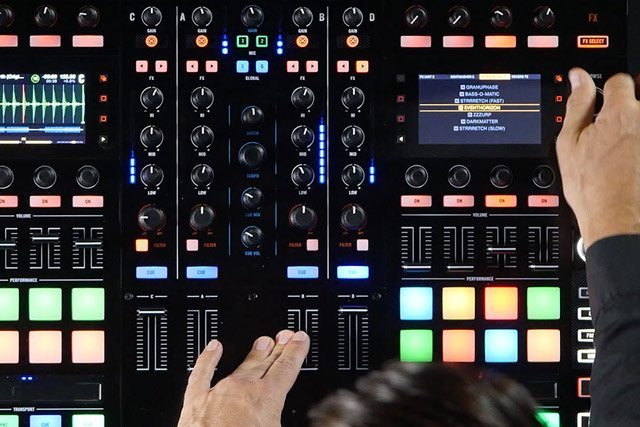
You can zoom in/zoom out on the waveform by pressing 2 buttons (square icons) on the right side of the display. You can also adjust the key of your track. If you have the key analyzed it will be displayed and you can adjust it up or down with the encoder. It will also indicate what the new key is when you adjust it. This makes it useful for harmonic mixing. You don’t want to adjust this more than a couple semitones otherwise it starts to affect the sound quality. You can also adjust the brightness of the displays by pressing the cogwheel to the left of each display.

Can you sort playlists?

Yes you can, you can sort your playlists by BPM, Import Date, Title, Artist, Key, and Rating. You can change how the playlists are sorted with the first encoder under the display.

Are you able to change the color of waveform?

At this time it’s not possible to change the color of the waveform. However the different shades of blue on the waveform can still be used to distinguish between highs, mids, and lows. The darkest shade shows low frequencies, while the lighter shade blue shows mids, and the the lightest shade which is almost white indicates high frequencies. Hopefully a future update will allow you to change the color of the spectrum (i.e. Spectrum)

How does beatgridding work?

With the built in screens it’s possible to adjust the beat grid directly from the Kontrol S8. To do this, press the edit button. Now you can adjust the BPM in whole values, or with fine control using the encoders. You can also adjust where the beat grid starts with the “offset” knob. Finally you can also tap the tempo in. With electronic music using the tap function is usually enough to give you a perfect grid.

With the remix decks, do you get access to all 4 pages?

It is possible to access all 4 remix deck pages. Since there are 8 pads on the S8, the cells are split across 8 pages. To scroll through them we can use the square buttons on the right side of the display. Of course our cells will change color to match the cells and we can also see what’s loaded in the cells on the display.
next-steps

Full Review: Traktor Kontrol S8

Traktor Kontrol S8 Review

Full Review: Traktor Kontrol S8

Ever since Native Instruments released the Maschine Studio with large color displays, DJs have imagined a Traktor controller with full resolution displays. Last November DJs got their wish when Native Instruments released their first Traktor controller with fully integrated screens, the Traktor Kontrol S8. The controller has been out for a while, and our own Ryan Dejaegher has been putting it through the real world trials to see if it’s worth the investment.

Native Instruments Traktor Kontrol S8

  • Price + Availability$1199, Available in the DJTT store
  • The GoodBest build quality of any NI controller, screens let you focus on hardware
  • The BadCan’t be remapped, no pitch faders, no jogwheels may be deal breaker for some
  • The Bottom LineThe Traktor Kontrol S8 is the best all in one controller for Traktor
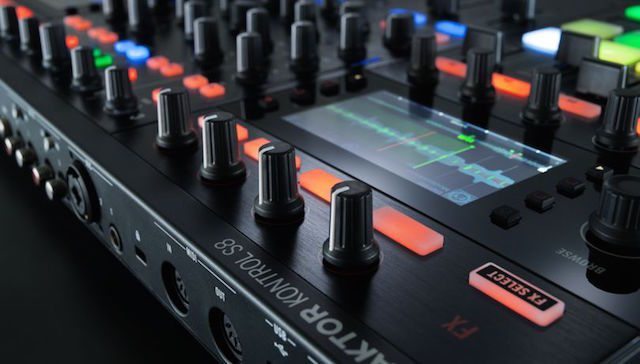
When looking at the Traktor Kontrol S8, it’s easy to see the influence from other Native Instruments controllers. The screens are very similar to screens found on the Maschine Studio, the touch strip pulled from the Kontrol X1 MK2, and the pads, short faders and knobs borrowed from the Kontrol F1. With all these controls rolled together, the Kontrol S8 becomes the only controller a Traktor DJ would ever need.

Hardware: Build Quality + Controls

Traktor Kontrol S8
Native Instruments has continued to improve the build quality of their hardware over the years and the Kontrol S8 is their most well built controller yet. The controller has a solid weight to it, the faders are very smooth, and the large pads/buttons throughout are a nice touch. One thing that DJs will be happy to see is a brushed metal finish for the entire top plate of the Kontrol S8. This is a welcome change from the glossy plates used on the Kontrol S2/S4/Z2, which looked nice before turning into a finger print magnet.
There are number of controls that are both new, yet familiar. The Kontrol S8 has 8 RGB pads per decks that control a number of functions: remix decks, hot cues, and loops/beat jumps. The pads are a nice size, larger then the Kontrol F1 pads but smaller then the full size Maschine pads. Overall the pads feel great, however they are “click style” just like the F1 pads. Having a click helps confirm that the pads have been triggered for things like the remix decks. For finger drumming it can take some getting used to, as many people do prefer the feel of a MPC style drum pad or even the Midi Fighter’s arcade buttons.
DJs that are familiar with the Kontrol X1 MK2 will recognize the touch strip. The functionality is very much the same, DJs can slide their finger across the strip to pitch bend the track, while holding shift lets DJs quickly scrub through the entire track. There are LEDs above the touch strips that indicate the phase of each track (orange in the middle when the track is in sync.) The LEDs also indicate the track position while the shift button is held. DJs can technically “scratch” while the track is paused, but for anyone that’s serious about scratching it’s best to connect a turntable.
The touch strip is missing some functionality from the Kontrol X1 MK2 such as touch loop rolls and touch fx control. Hopefully these are added in a future software update. In general, however, since each touch strip is dedicated to a single deck – we found they performed better than X1′s and were easy to use. Traktor Kontrol S8 FX
Touch sensitive knobs have started to appear on more controllers. Most of the functionality has been focused on touch EQ knobs that act as kills or touch FX knobs for quick FX triggers. On the Kontrol S8 they serve a different purpose that’s important to the usage of the screens. The touch sensitive knobs will cause the parameters to appear on the screen. Anytime DJs adjust the FX knobs or the encoders beneath the screen, they’ll notice the parameters will appear on the screen. This helps keep the screen clean and avoids cluttering it with parameters that aren’t actively in use.

Full Standalone 4 Channel Mixer

Traktor Kontrol S8 faders
The Kontrol S8 has a 4 channel standalone mixer so DJs can connect up to 4 CDJs or turntables to switchable phono/line inputs on the back and mix without a laptop. The VU meters are nice and large. Another cool feature of the mixer is the filters now have a on/off switch, which makes it easy to do filter sweeps and then instantly kill the filter. The faders on the mixer are all very smooth and according to our sources at NI, were even custom built for this controller.
Each fader features a reverse slide position, so any liquids poured into the mixer will never cause problems with each faders’s performance. The crossfader has a nice loose feel which is great for rapid cuts,  and there’s an adjustable crossfader curve, which makes it suitable for scratching. A first for a Traktor controller is a removable/replaceable fader section. Should there be any issues with the faders or if DJs want to upgrade to an innofader this should make the installation easier.
Finally the Kontrol S8 has RCA and XLR master outputs, and a dedicated booth output, something that DJs have wanted ever since the Kontrol S4 MK1 was released.

New Features: Freeze mode + New Remix Deck Controls

Kontrol S8 Pads
The Kontrol S8 was released alongside a new Traktor update which included a few new features to compliment the new controller. The first major feature is “Freeze mode”, which has existed in Traktor DJ (iOS) for sometime but now shows up in full glory on hardware. For those unfamiliar with the feature, freeze mode lets DJs quickly chop sections of their track into 8 temporary slices/cue points on the fly.
The freeze mode is probably the S8′s one stand out “must-have” feature. No other NI controller features a fully integrated freeze mode with all 8 slices and the screen to show you what slice is playing.  These two together made it surprisingly easy, and fun, to slice up songs and do multi-part juggles on the fly.  Eventually, freeze will probably replace all cue-point juggling entirely, since it can be applied to any part of the song.
The latest Traktor update also includes 2 new controls for the remix deck slots, and the S8 is uniquely designed to leverage them: FX send and pitch adjustment. FX send allows DJss to control the dry/wet signal of FX per remix slot, allowing for more subtle FX application that is very appropriate for electronic music parts. Pitch adjustment is also fun with electronic parts such as hi-hats and rides, enabling the classic 909 pitch down ride effect found in most throw back house tracks today.

The Screens

Traktor Kontrol S8 screens
Let’s just get this out of the way, the screens on the Kontrol S8 are gorgeous and it’s the best thing about this controller. Native Instruments has almost taken away any need to refer to your computer’s screen for information. There is a huge list of what the screens can display including: track collection, scrolling/zoomable waveforms, FX parameters, remix deck cells, remix deck controls, loop size and so much more.
Kontrol_S8_Controller_Review_screen
While the remix decks are a cool concept, one of the challenges with them is trying to remember what is loaded into each remix cell. The only thing DJs have been able to do is try to color code their cells or keep referring to their computer. The Kontrol S8 screens solve both these problems. When DJs switch to a remix deck on the S8, the screens will display a 4 x 2 grid of the remix cells with the title/names/wave for each remix cell. In practice it makes you feel like the S8 is a real remix machine, and not just a remote control.
For track decks, DJs get the essential track deck information displayed on the screen including scrolling waveform, full track stripe, artist, title, BPM, and key. At this time DJs don’t have the ability to change the deck details or where details are displayed on the screen.  The graphics on the display are large and clear so they’re easy to see. DJs also have the option of viewing a small waveform for Deck C/D under the Deck A/B waveforms, very handy for DJs that like to mix 4 decks.
The last major benefit of the screens is being able to view the track collection. The screens give you full access to the entire track collection: playlists, remix sets, and any other folder trees. When scrolling through the track collection, DJs will be able to see artist, title, BPM, and key. To speed up the search, DJs can also sort the library by artist, BPM, import date, and others. One thing that could be improved is the scroll speed while going through the library. With a big collection or playlist it can take a long time to scroll through all the tracks.

What’s Missing?

When looking at the Kontrol S8 it’s obvious that a couple very common controls are missing. The most noticeable are jog wheels, but these were probably a required sacrifice in order to make room for the screens and remix deck faders. A fair trade off perhaps, scratching for true remixing. In actual DJ use, the touch strip is a fine substitute for jog wheels, the only thing it can’t do is scratch. For DJs that want full surface scratch control, the Kontrol S8 ships with Traktor Scratch Pro 2 allowing turntables with Traktor timecode vinyl to connect into the S8.
The second thing DJs will notice is there are no pitch/tempo faders on the Kontrol S8. Instead the tempo can be changed for each deck using the large screen encoder on each side. There is also a tempo knob in the centre of the Kontrol S8. This controls Traktor’s master clock. The idea here would be for all decks to sync to the Traktor master clock, then use the tempo knob to adjust the master clock as needed. With this kind of setup Native Instruments is really pushing sync and negating the need to manually beat match at all. It makes sense since the Kontrol S8 is really focused around 4 deck mixing or 2 deck + 2 remix deck mixing. It wouldn’t be very practical to manually beat match each remix cell that a DJ drops in.
Finally at the time of this review, the Kontrol S8 cannot be remapped. This is disappointing for DJs that want to customize their controllers and workflow. The word we heard is that the screen integration made it impossible to support custom workflows or special mappings, however a single mappable “section” (likely the remix deck faders and encoders) might come in the future.

The Best Traktor Controller Out There?

NI_Traktor_Kontrol_S8_TOP_For_Sale
For DJs looking for a high quality Traktor controller with control over almost all of Traktor’s functions, this is definitely for you. For DJs that want to stop staring at the laptop and focus on their gear, the screens on the S8 will definitely let you do that. However the controller isn’t for everyone and many will be turned off by the price, weight/size or possibly it’s focused intention.
There are DJs that still want jog wheels, and who have no need for the remix deck control due to more traditional DJ sets involving mixing a wide range of tempos. For them – the S8 might be feature overkill. The largest obstacle many face is considering this controller is price.
While the Kontrol S8 is expensive, a DJ would need to have a Kontrol S4 and 2 Kontrol F1′s to have close to the same functionality. For roughly the same price,  DJs can get the Kontrol S8 with superior build quality, built in screens, and a Traktor Scratch Pro 2 license – which does makes it a good value if you want to go all-in on the Traktor universe.

Tuesday, October 21, 2014

Routine: E.A.S.Y. – Shiftee and Enferno Collaboration On Maschine MK2, Turntables, Kontrol Z2

DJ Enferno and DJ Shiftee team up to offer new collaboration project to save DJ culture.

Routine: E.A.S.Y. – Shiftee and Enferno Collaboration On Maschine MK2, Turntables, Kontrol Z2

If you follow either DJ Shiftee or DJ Enferno on Twitter or Instagram, you are well aware of the “fued” brewing between the two DJs. DJ Enferno was claiming that “Scratching is cool but turntable only routines are relatively easy” which led to the birth of a battle staged for 11AM EST this morning to settle the beef. In reality, the fight was all staged to build up anticipation for a collaboration project between the two DJs called E.A.S.Y. This project is tailored to bring a new perspective to change how people perceive live DJing and performance. Watch the video below and read more about the paradigm shift that E.A.S.Y. is trying to make.

Shiftee + Enferno: Changing the View on DJs

It is no doubt that DJ culture has become more popular in the last few years. With events such as EDC and Ultra, people are being drawn into the aspect of seeing a DJ just like they would pay to see their favorite rock band. However, a stigma has also been created where DJs are seen as “button pushers” and can’t possibly be on the same level as “real” musicians. If you didn’t catch it, the video above pokes fun at the SNL skit “When Will the Bass Drop” which is a comedic take on the notion of DJs just being button pushers. E.A.S.Y. performs a clever, live remix of the song and seamlessly transitions into their original, “Fly Away.” While the collab video is a parody of the skit, it also raises a beautiful point that is starting to be lost with the influx of DJs and over hyped electronic festivals. DJing is not the act of pushing play and putting your hands in the air. DJing is an art and takes skill on multiple levels.
The video showcases their next level turntablism skills and musicianship, but also highlights their stylistic direction and future bass wig wearing ability.
E.A.S.Y. is the new DJ Enferno and Shiftee collaboration project.
E.A.S.Y.’s debut could not have come at a better time. DJing is a living practice of music just like any other instrument and needs to be protected from mediocrity and over-commercialization. I can only hope good things for the duo because there needs to be distinction in what a DJ is and what a DJ is not. We are not button pushers. We are practicing musicians in an art form that takes the same level of dedication and musicianship as any other instrument does.

Friday, October 10, 2014

To Drink or Not To Drink (While DJing)

shots-dj-booth-drinking

To Drink or Not To Drink (While DJing)

Let’s drag out the white circle-shaped elephant in the corner. The nightlife industry is in large part designed to at the very least, enhance, and at worst, facilitate the consumption of mind-altering substances. Everything from alcohol to drugs and beyond is on the menu nightly. As DJs, it’s almost guaranteed that you will come in contact with this fact at some point. So the question is (as the infamous D.A.R.E. shirts posited) – should you just “say no”?
As we attempt to walk this razor line delicately, some disclosures and context.
  1. This is not an “anti-” anything article. We are pro-being smart – and will not carry a moral position on this one.
  2. My goal is to provide some advice and techniques for young DJs to use when navigating this sometimes tricky landscape of being “cool” while staying smart.

ALL ABOARD THE BOOZE TRAIN 

dj-mode-on-drinking-glasses
Have you ever seen a DJ booth and not spied a drink nearby? The answer is probably not and the reason simple: most dj’s are usually shy or a little bit nervous, and a few drinks will provide a quick shot of confidence.
Cerebral cortex: In this region, where thought processing and consciousness are centered, alcohol depresses the behavioral inhibitory centers, making the person less inhibited; it slows down the processing of information from the eyesears, mouth and other senses; and it inhibits the thought processes, making it difficult to think clearly. (Source: How Stuff Works)
This much needed inhibition decrease is the first thing to occur after a drink, but it’s short-lived and the longer-term effects (slower thinking and reaction time) stick around for a much longer. Further drinks start to impair motor function and response time but no longer provide any inhibition benefits. 
Before reaching for a drink to relax yourself pre-set, consider that there might be more effective ways to get the same results.
  • Plan out your first four songs and rehearse the mixes so it’s less stressful and almost guaranteed to work
  • Watch this TED Talk on “superman poses” that reduce cortisol (stress response hormone) and increase testosterone (confidence-related hormone)
  • Set up your gear in advance or have a setup process that is rock-solid so plugging isn’t a stressful pre-set experience
While DJing drunk can feel like a lot more fun, you have to ask – I am really doing a better job?

UNDERSTANDING YOUR CROWD

(Photo Credit: Scott Rennie)
(Photo Credit: Scott Rennie)
Here are two common arguements for being more liberal in substance intake while at the DJ helm:
“The crowd is off their head, so it’s nearly impossible to really play what they want or be in the same place without going there to a certain extent. If you have never done any drugs, then it’s impossible to understand and therefore “play” to a crowd that is in that experience ” 
For me, the second assumption holds more weight, but doesn’t work out logically. If you have taken acid in the past, then you probably have a pretty good idea what the guys on acid are feeling like right now. It’s not really essential for you be on acid in order to play a set, although that could certainly result in some very interesting moments.
At the most basic level, DJs are given responsibility to make smart musical decisions for an event.
  • What is the best track to play now?
  • How loud should it be?
  • What BPM is appropriate?
  • Who am I playing to?
It becomes very hard to make good judgment calls when your decision-making centers and motor skills are seriously impaired. As the previously cited article notes, various parts of the brain are affected with more alcohol. The first drink largely limiting inhibition (generally not a bad thing) but further drinks resulting in mostly negative effects.  So, if you must drink, then just be smart and keep it in moderation.

MODERATING PLEASURES 

dance-more-drink-slow-armin
If you do find that drinking greases the wheels of creative song selection, then we invite you to imbibe like a professional, not an amateur – you are in fact get paid to party after all. Here are five tried and true techniques for going the distance without running into the ground.
  1. Drink an energy drink instead (like Red Bull or similar). All of that taurine and caffeine will put you at the same energy level as the crowd without the fuzzy mental focus.
  2. Pair each alcoholic drink with 1-2 glasses of water. By replacing your fluids through the night, you not only avoid the hangover but will keep significantly more mental focus.
  3. Pop an Activated Charcoal pill before the gig. This might allow you to drink more without getting nearly as drunk – it also is great at avoiding a hangover by absorbing many of the chemicals that name you feel like a loser in the morning. (Read more about this on WebMD)
  4. Do as the sober folks do and drink faux cocktails. Cranberry, soda in a large glass with a large lime is the perfect fake cocktail that will keep your hands occupied for a long time.
  5. Fake Shots! Bartenders love this one. They have water shots ready to go or a special bottle to pour from. This will keep all of your friends and that liver happy at the same time.
If nothing else – then please consider your ears and the effect of booze on your perception of noise.
Increased drinking reduces your noise perception floor, increasing the chance of hearing damage
The chances of monitor abuse during a set laced with the sweet taste of Johnny Walker is almost guaranteed. Unless you want to take the direct flight to tinnitus, it’s advisable to keep drinking in check while at the helm of a mixer. Read more about how drinking can cause tinnitus in this DJTT article.

IN FOR THE LONG HAUL

While many people get into DJing as a way to finance their party lifestyle, I would suspect the majority of our readers are in it for the creative thrill and musical challenges that DJing presents. The average party-goer can afford to go overboard and then check out for a while to recover from a serious party binge.
However, if DJing is a life choice, then it’s critical to take the “long haul” approach and avoid toxic burnout at all costs. For some DJs that may mean a totally sober approach, while for others simple moderation could be enough to maintain balance. One thing is guaranteed, partying like you’re on the dance floor is not a sustainable path to a healthy career.
Facebook304Twitter33Google+0

Wednesday, September 10, 2014

Deadmau5′s Booth: A Glimpse At Live Production With A Giant Touchscreen

Deadmau5 uses Microsoft's Perspective Pixel display to create a custom live controller.

Deadmau5′s Booth: A Glimpse At Live Production With A Giant Touchscreen

Controllers come in all shapes and sizes, yet producers will still tinker with the device to create a custom workflow. iPads and other tablets make nice alternatives because an artist can build a custom controller within the app, however, the amount of space is always an issue. Then there are artists who take tablets to the next level and use a giant touch screen, for example the Microsoft Perceptive Pixel screen, to create enormous, tactile controllers. A prominent example is Deadmau5 who can be seen creating a custom controller using a 55’’ touch-screen, below.

Giant Tablet, Multiple Possibilities

The tablet shown in the above video is Microsoft’s Perspective Pixel device. At 55’’, this is one of the biggest touch displays running as a functional touch device. Deadmau5 purchased the device in order to be implemented into his future tours and performances. This device runs Windows 8.1 just like any other Microsoft tablet would and a producer or DJ could run any compatible app to create a custom MIDI controller, such as Touch OSC.
Here’s his just-posted Instagram view of a 1st person view from his onstage booth:
Everyone has seen a producer “play” a set through a pair of CDJs. Tablets and especially ones of this magnitude can be used as either a custom controller or platform to play a song using clips and live production, taking the whole set out of a traditional festival DJ feeling and into a true live performance vibe.

Future Trend in Music Performances?

This way of performing may not be any less complex than working with synthesizers, turntables, mixers, and sound machines, but it does seem a lot more engaging. A system like the one Deadmau5 demonstrates will keep a performer much busier during the entire set. That being said, this system isn’t cheap and I wouldn’t recommend it for the average DJ. However, if this were to become a more accepted form of performing, we may see a lot more producer creating a more hands-on experience. Giant touch screens are offering what the tablet offers as a medium for DJing only on a much better and bigger scale.
What are your thoughts on Deadmau5′s giant tablet? Can you see your favorite artist using this in their set?

Reloop Neon: Dedicated Effects Management for Serato DJ


Reloop Neon

Reloop Neon: Dedicated Effects Management for Serato DJ    


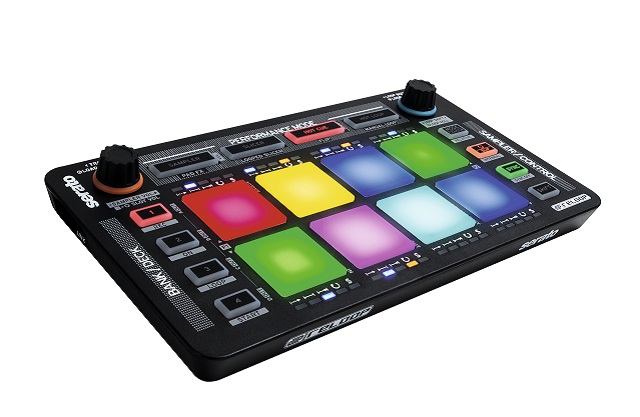
Controllers that compliment DJ software have usually been on the Traktor side of DJing for the past couple of years. However, with the latest developments with Serato DJ, more and more controllers are now coming to forward to take advantage of all the features that Serato DJ has to offer. Reloop has announced the Reloop Neon today which is a controller that houses 8-RGB, touch-sensitive pads to take full advantage of all the effects Serato DJ has to offer. Read more inside on how this dedicated Serato SP-6 sampler controller compliments the software and everything else it has to offer.

Total Effects Control

The Reloop Neon is one of the first Serato controllers for the new software that is dedicated to effects management. The Neon is small enough to sit on the table with other equipment and is an official Serato accessory, giving the controller plug-and-play compatibility right out of the box. The main central focus of the controller is on the 8 touch-sensitive RGB performance drum pads which are ultra-low-latency with after touch. The pads support 8 performance modes: Sampler, Pad FX, Slicer, Looped Slicer, Cue, Hot Flip, Hot Loops, and Manual Loop. (4-deck control is available for the Slicer, Cue, and Loop.)
The Reloop Neon is the first dedicated effects controller for Serato DJ.
“The Reloop Neon brings the effect management that has mostly been seen in Traktor and rarely Serato.”
The RGB pads offer visual feedback in each mode to keep the DJ informed about what’s going on in the software. Along the top of the Neon are two endless push encoders for track navigation, volume control, and loop editing. The controller also allows the DJ access to censor, slip, and sync functions for all decks. The Neon also supports the popular new Flip mode in Serato DJ by allowing the DJ to create individual edits from a song and trigger those sequences as Hot Flips. Below are some of the main effect controls the Neon offers.
Sampler:
  • 5 different trigger variants per sample slot.
  • Access to all 6  sample slots in the 4 banks.
  • Dedicated sample volume control. (Master + Slot)
Pad FX:
  • Direct access to 6 selectable iZotope FX in Pad FX mode.
Slicer/Looped Slicer:
  • Slicer performance modes for slicing of your tracks.
Cue/Cue Roll:
  • 8 color coded cue points per deck which can be triggered as roll.
Loop/Manual Loop:
  • Quick access to more than 8 storable loops and manual loop control.
The Reloop Neon is a low profile Serato DJ controller for full effects control.
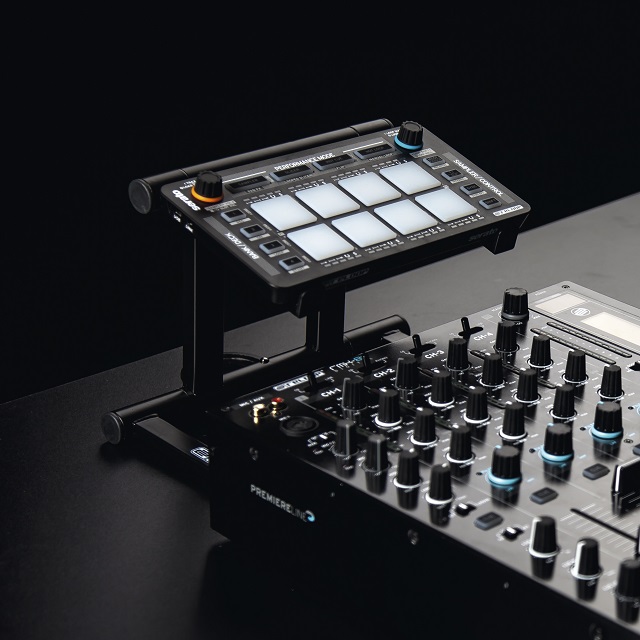
“The Reloop Neon is extremely low profile and can save even more space when placed on the Modular Stand.”

Is the Neon a must for Serato DJ?

The Neon is the one of the best solutions to effects management in the new version of Serato. The Neon has an internal/relative mode for DVS users and also is USB bus-powered. Two Neons can be connect via a smart link function for total control over both decks which also saves a USB port for other controllers. The effects management that the Neon provides for Serato DJ is amazing however some DJs aren’t ready to switch over to Serato just quite yet which is why it should be noted that the Neon is a full MIDI device. Reloop also offers a stand that fits the device allowing it to sit right over other equipment in a setup.
The Neon is seems to be a comprehensive add-on for any Serato DJ setup, and is scheduled for release in October of this year and will be approximately 129 € or $149 USD.
Do you think the price is worth the investment for a dedicated effects controller? Is the functionality of the Reloop Neon something you look for in controllers?

Wednesday, September 3, 2014

Review: Akai APC40 MK2 First Look

cover-APC-40

Review: Akai APC40 MK2 First Look

The original Akai APC40 is one of the rare breed of products in the computer music age to achieve iconic status. Launched in 2009, the APC40 (followed by its more compact sibling, the APC20) was, along with the Novation Launchpad, the first dedicated, plug-and-play Ableton Live controller to hit the mainstream market. Five years later, Akai are releasing a re-imagining of the original APC40, the Mk2. Will it be as widely adopted as its forebear? We spent some time with it to try to find out.
Reviewed: Akai APC40 MK2
Expected Street Price: $399
Released: In stores this fall

The Good:
  • Cheaper and more portable than the original model
  • New RGB pads are very cool
  • Bus powered
The Bad:
  • Doesn’t feel as solid as the mk1
  • No new ‘creative’ features

EVERYTHING OLD IS NEW AGAIN

apc-40-mk2-vs-apc-40
Old APC40 (left) vs new APC40MK2 (right)
Anyone who has spent time with an original APC40 (and liked it) will certainly be comforted by just how similar the new version is. Yes, the layout is a little different, and there are a couple of new features, but overall in functionality terms, the Mk2 is just that; a revision of the mk1.
The APC40 Mk2 remains very much a ‘live’ controller, designed purely for playback of clips in Live’s session view. There are very few concessions to studio use here; no way to input notes, no step sequencer. This model is very clear in it’s purpose, and that’s rather refreshing in a market so often crowded with ’Swiss Army Knife’ products.
The 8×5 matrix of buttons for launching clips is the most noticeable difference. Now fully RGB capable, they allow proper colour feedback of all the myriad assignable colours within Live itself. On the one hand, that is a wonderful development, allowing users to colour-code different clips to their own taste, reducing the need to look at the screen.
On the other hand, though, the way to tell if a pad is active, and playing, now, is that the illumination gently pulses. That’s ok in a very dark club space, but if you’re using the Mk2 in a lighter environment (daylight, for example) it can be quite hard to see at a glance exactly which clip is playing in any particular column.
On balance, the benefits offered by the RGB pads do outweigh the issue of clarity; it’s a massive leap forward from the old 3 colour system, but you should keep it in mind if you perform at a lot of daytime events.

OTHER NEW APC 40 MK2 FEATURES

APC-40mk2crossfader
There are a few other new features that have made their way to the Mk2:
  • A dedicated tempo control knob joins the Tap Tempo and Nudge buttons, which should make mixing your Live set into a DJ set a little easier.
  • Channels can be assigned to the crossfader, either side, on the fly, and there’s a button for Session Record, a new feature which appeared in Live 9.
  • The Clip Stop buttons are now recessed, making them less prone to accidental activation.
  • The 8 endless rotary knobs, (previously sat on the top right of the controller) to control pans and sends (and have a user assignable mode too), have been relocated to directly above the channel strips. This is a much more logical setup, and as they are endless rotaries with LED ring lighting, will immediately adjust to match their mode, or channel as you navigate around your Live set.
That ease of use is similarly reflected in the Device Control section, again with 8 rotaries, along with buttons to navigate through different devices, lock control to a single device, and switch them on and off. All good stuff, and using it reminds you why the original APC40 did prove to be so popular; there’s smart design going on here.
One big benefit over the original APC40 is that the Mk2 is powered solely over USB. There’s not even an optional power supply. That’s quite a step up from the original, which required a fairly hefty wall-wart at all times, and makes the Mk2 a much more portable solution.

APC 40 MK2 BUILD & SIZE

APC40MKII_angle_web_700x438
Speaking of portability, the Mk2 is actually quite a bit smaller than the original, whilst, as it loses the rather superfluous ‘wings’ of the earlier model, there is generally more space for the controls.
It’s a touch narrower, around 3 inches shorter front to back, and, as it has a completely flat profile, not as tall overall, by around an inch. It’s also not far off half the weight of the old one, perhaps due to the completely plastic nature of the the casing now. It still feels well built, and sturdy, but doesn’t quite exude the ‘tank-like’ feeling of the mk1. In general though, the increased portability feels like a reasonable payoff for that.

WHAT’S STILL MISSING?

The main things one might look for in a controller dedicated to Ableton Live, which aren’t found in the APC40 Mk2, are all related to MIDI creation, really. The pads aren’t velocity sensitive, so even if Akai did offer a Note Mode, as found on the APC20, you wouldn’t be able to be very expressive with them. There’s no step sequencer, either, as found on the competing Ableton Push (also made by Akai). The APC really is designed just for playing back existing clips, and mixing them. Anything much beyond that, you’ll need a secondary controller.
One feature which has always seemed to be a missing link in the APC range is a lack of motorised faders. Yes, they would add to the cost, and weight of the device, but they do make a massive difference to some people. Ableton’s takeover modes go some way to negating the need for them, but it’s worth being clear – if you need motorised faders, the Mk2 isn’t for you.

WRAP UP

The APC40 Mk2 feels like a natural evolution of the original model, bringing it up to date smoothly. Users of the old APC40 will feel right at home here, whilst enjoying the nice new design touches. Anyone who was put off by the lack of ‘creation’ options before won’t find anything new here to get them excited, but considering what this controller is designed to do – control Ableton Live in a live environment, it achieves that superbly. It’s really fun and intuitive to work with, and feels like it will last. A worthy successor, especially considering it is launching at $399, a full $200 less than the original price of the mk1.
The Push is $599, so you’ll really need to consider how much you need the clip creation features of the Push before choosing between the two for live use. For playback of clips, and control of devices in Ableton Live, the APC40 Mk2 serves its purpose superbly.

BONUS REVIEWS: APC MINI & APC KEY 25

Along with the APC40 Mk2, Akai have added a couple of super-portable extra units to the APC range.
APCmini_ortho_web_lg_700x438
The APC Mini looks like a shrunken version of the Mk2, with the now familiar 8×5 grid of pads (just very small), with equally diminutive recessed, low profile faders below. The faders can be quickly assigned to different functions with dedicated buttons, and clever use of a shift key allows the Mini to pull off a lot more than you might imagine for such a tiny device.
APCKey25_ortho_web_lg_700x438
The APC Key 25 has an even smaller 8×5 grid, and all the same controls, but instead of faders, you get a set of 8 knobs (not endless), and a compact 25-key keyboard.
Ultimately, these mini devices didn’t get our blood pumping like the APC40 Mk2, but we didn’t expect them to; they are designed to be used on the move, or as part of a bigger setup, and they do that job very well. Both feature 3 colour LED clip launch pads, rather than RGB, but those pads are just big enough to be usable. Perfect for practicing, or recording mixes whilst on a train or sat in an airport, really. Add in the fact that you can use any combination of the APC range together in one Ableton Live rig, and at $129 for the Key 25, and $99 for the Mini, they both seem like a good deal.